Blip File Sharing App Review
I've spent years testing countless file sharing solutions, from built-in tools like AirDrop and QuickShare to third-party apps like LocalSend and various web-based platforms. Each one seemed to have its limitations—some were too restrictive about device compatibility, others required everyone to be on the same Wi-Fi network, and many slowed down significantly with larger files. That's why discovering Blip felt like finding the missing piece in my digital workflow.
What Makes Blip Different
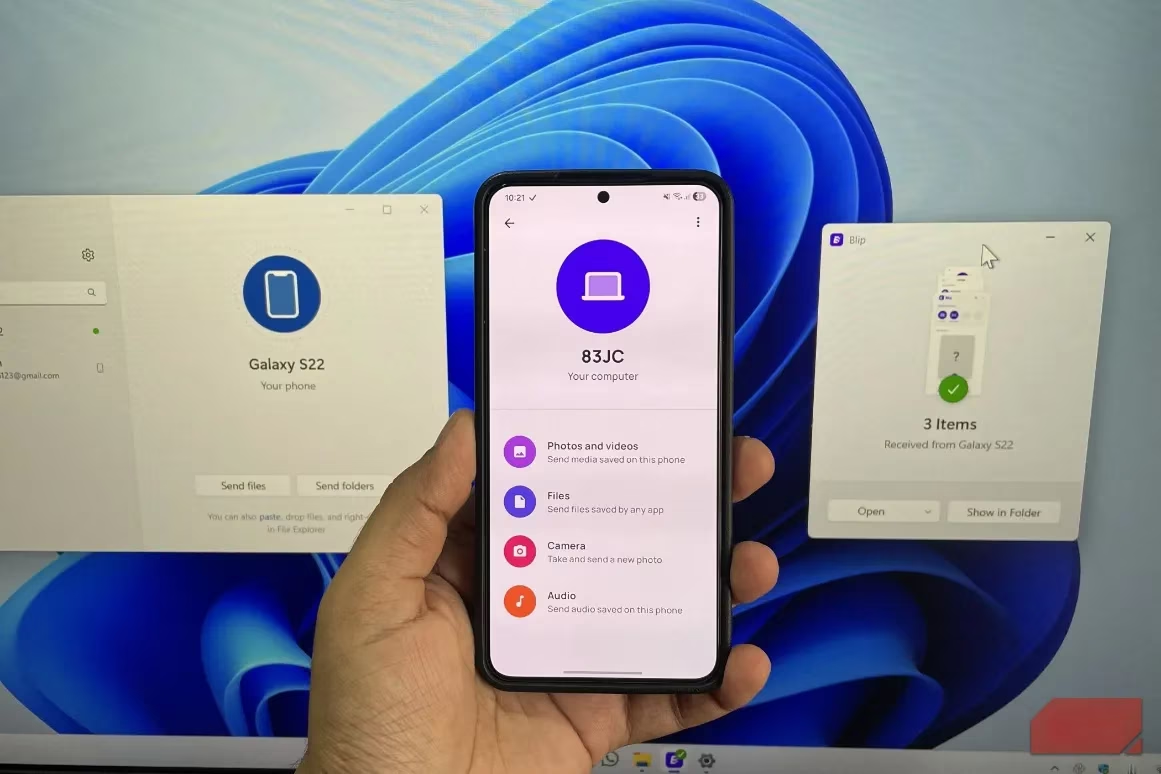
Unlike LocalSend and most other file transfer tools that require devices to be on the same network, Blip operates seamlessly across different networks. The ability to send files between devices even when they're not connected to the same Wi-Fi—or even in the same physical location—completely changes how I approach file sharing. Blip intelligently uses internet connectivity when devices aren't on the same network, and what's truly impressive is that it doesn't follow the traditional upload-then-download approach. The moment you hit send, the receiving device starts getting the file in real time.
Setting Up Blip
Getting started with Blip couldn't be simpler:
-
Download the app on all your devices
-
Enter your email ID and name
-
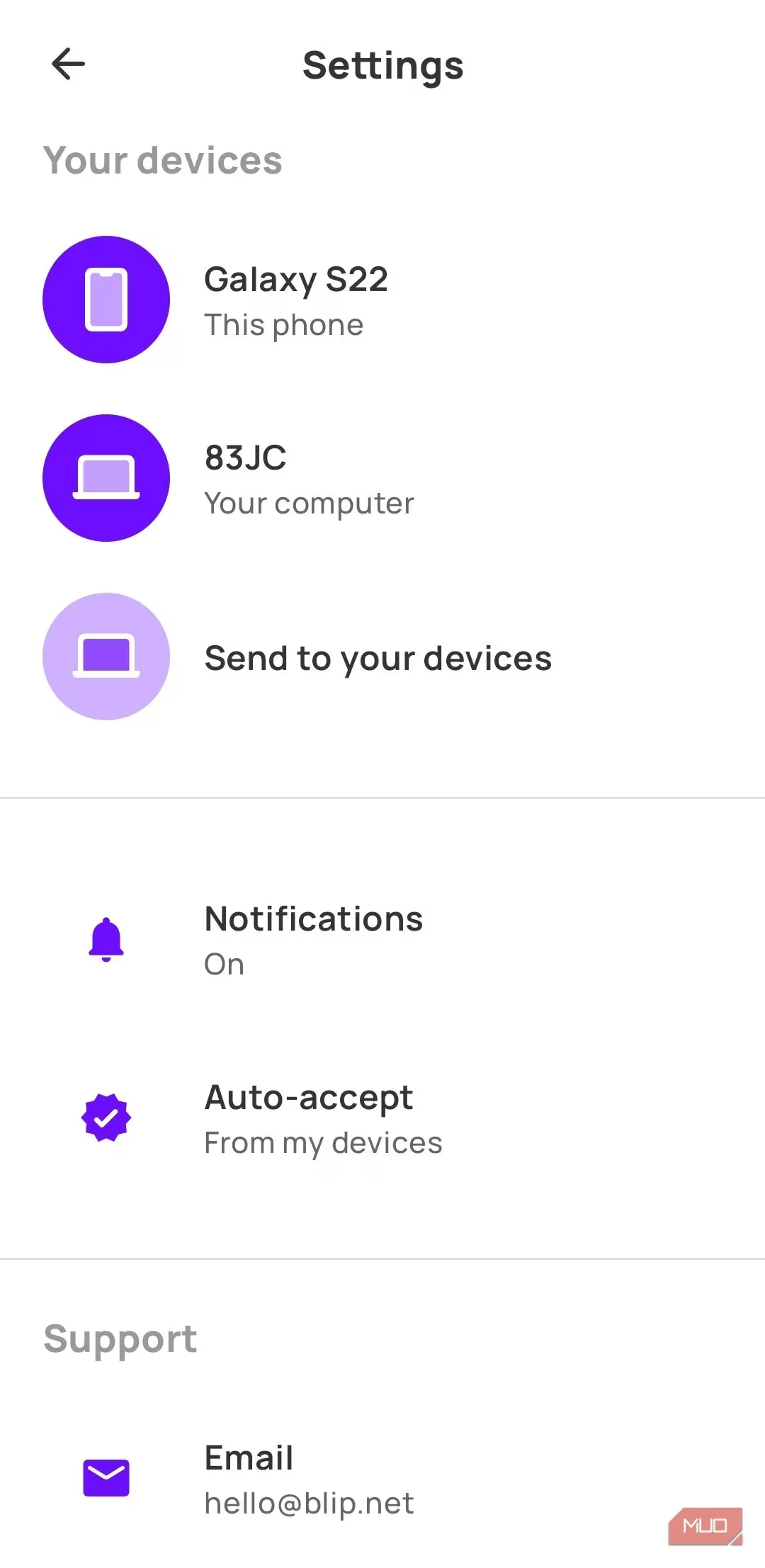
Your devices automatically appear in the app
-
Start transferring files immediately
Folder Sharing Made Easy
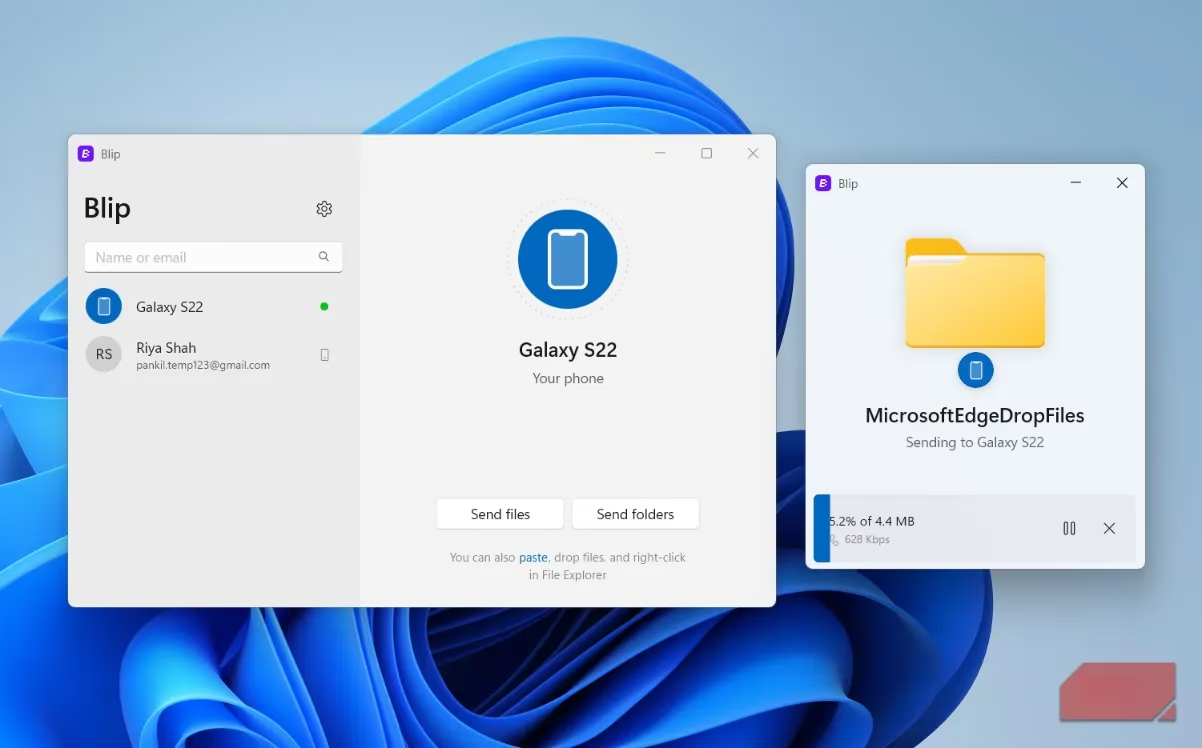
One of my biggest frustrations with most file transfer tools, including native options like Quick Share, has been their inability to handle folders properly. Typically, you'd need to compress everything into a ZIP file, transfer it, and then extract it on the other side. Blip eliminates this hassle entirely. You can send folders exactly as they are, maintaining all subfolder structures and file organization. On Windows, it's even more convenient—just right-click any folder, select Blip, choose your recipient, and you're done.
Blazing Fast Performance
Where Blip truly stands out is in its transfer speeds. When both devices are on the same network, file transfers feel almost instantaneous. I conducted several tests comparing Blip against LocalSend, PairDrop, and QuickShare, transferring the same set of files through each platform. Blip consistently finished first in every single test. The app imposes no limits on file sizes, making it perfect for handling 4K videos, large project folders, or uncompressed files—as long as your network can handle the throughput.
Convenience Features That Matter
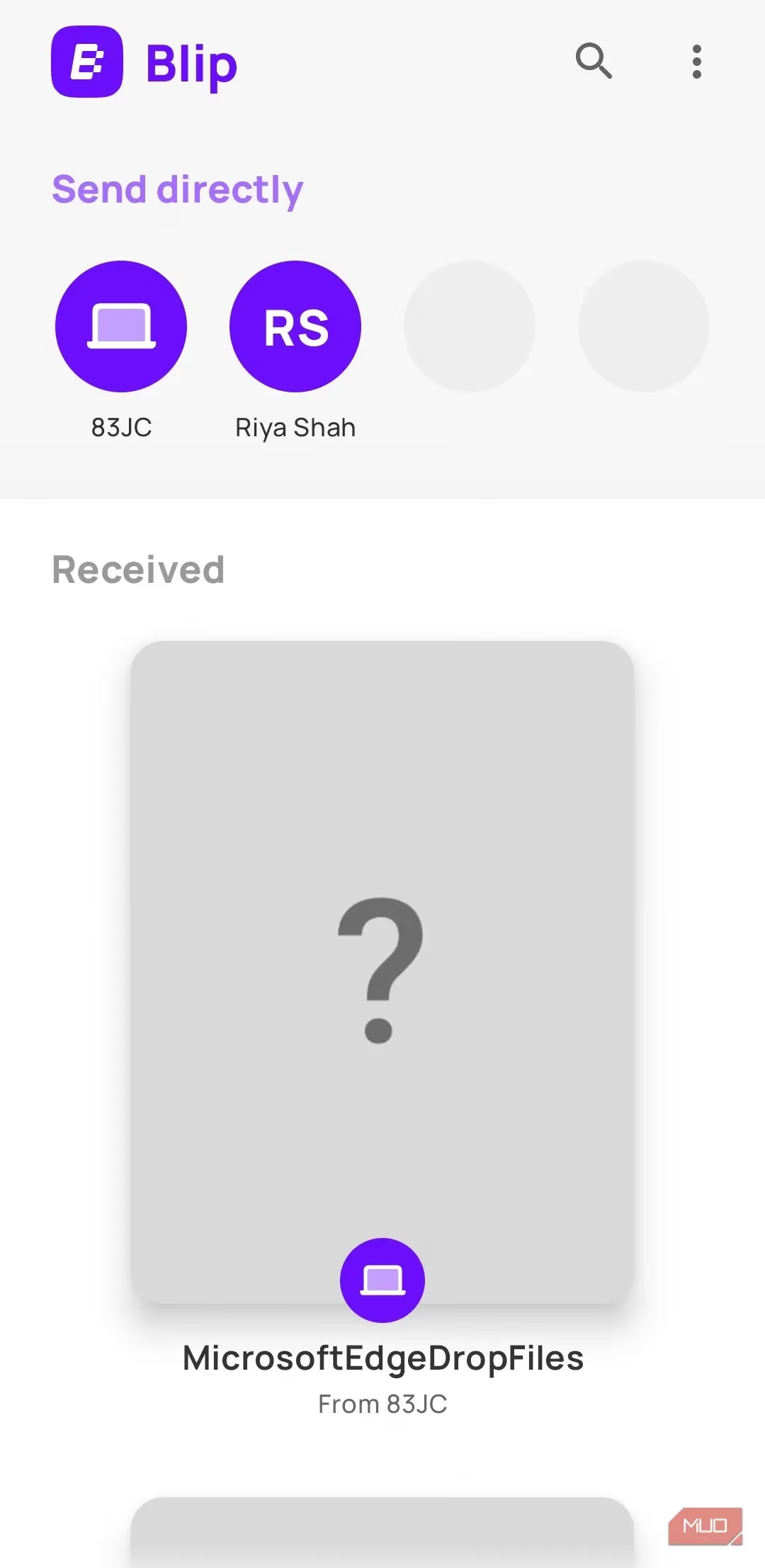
The automation features in Blip have significantly improved my daily workflow. Not having to manually open the app or accept transfers when sending files between my own devices saves precious time and eliminates interruptions. When you're transferring files dozens of times throughout the day, these small conveniences add up to substantial productivity gains.
Security and Pricing
Blip's security approach gives me peace of mind:
-
No cloud storage—files aren't uploaded to servers
-
TLS 1.3 encryption for secure file transit
-
Protection against interception attempts
For personal use, Blip is completely free, making it accessible to everyone. Businesses require a subscription costing $25 per month per user, which seems reasonable given the enterprise-level features.
When Blip Might Not Be Ideal
Despite its many strengths, Blip isn't perfect for every scenario. For quick, one-time file shares with people who won't use the app regularly, the requirement for both parties to install the app and create accounts can be cumbersome. In those situations, I still turn to browser-based solutions like PairDrop that work without any registration.
Final Thoughts
Having integrated Blip into my daily routine, I can confidently say it has transformed how I handle file transfers between my devices. The combination of cross-network functionality, folder support, blazing speeds, and seamless automation makes it my go-to solution for reliable file sharing. While it may not replace every file transfer tool in your arsenal, Blip certainly deserves a spot in your productivity toolkit.
Leave a Comment