The reassuring green checkmark from Windows Security often lulls users into a false sense of complete protection. While a robust built-in defense layer, it primarily guards against active external threats, leaving the internal landscape—a complex web of permissions, forgotten processes, and residual configurations—largely unmonitored. Over time, this digital attic accumulates forgotten services, orphaned registry entries, lingering startup hooks, and permissive execution policies, each a potential drain on performance and a subtle chink in the system's security armor. A comprehensive security audit, therefore, moves beyond traditional antivirus scans to map and manage the software ecosystem that Windows silently trusts, revealing how a computer's operational history shapes its present vulnerabilities and future resilience. 🛡️
🔍 Startup Persistence: The Silent Army at Boot
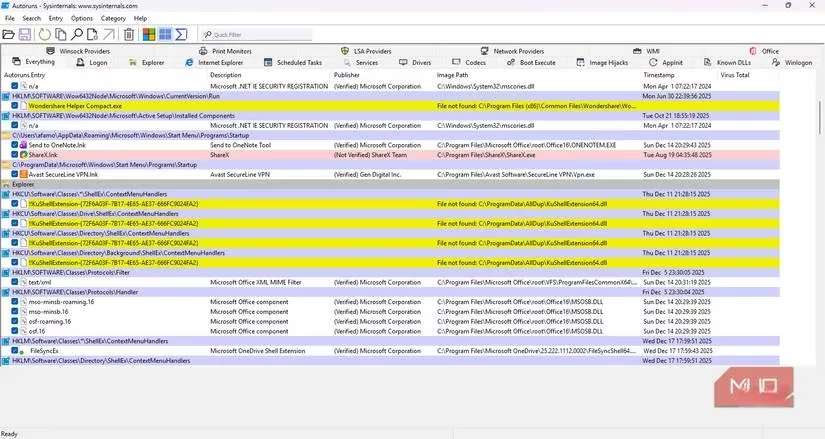
Startup persistence reveals the software vying for life with every system reboot. While Windows Task Manager offers a glimpse, it's akin to viewing only the tip of an iceberg. For a true audit, tools like Autoruns from the Sysinternals Suite are indispensable. It scans hundreds of registry locations and filesystem hooks—the hidden mechanisms Windows uses to launch code silently—presenting a comprehensive list of what truly loads at startup.
One immediate discovery was the presence of yellow-highlighted "File not found" entries. These were registry hooks pointing to executables deleted long ago, like digital ghosts haunting the system. While inactive, they represent residual pathways that, in extreme cases, could be repurposed by malicious software. The takeaway is clear: a superficial glance at Task Manager is insufficient; auditing requires delving into the registry's autostart labyrinth to close doors left open by departed applications.
⚙️ Service Scrutiny: The Ever-Present Background Chorus
Windows services operate continuously, often with high-level SYSTEM privileges, even when no user is logged in. An audit here frequently uncovers processes tied to long-uninstalled software or hardware peripherals no longer owned. These services are like forgotten factory machines in a sealed wing of a building, still consuming power and awaiting commands that will never come.
You can investigate services via:
-
Press
Win + R, typemsconfig, and navigate to the Services tab. -
Check "Hide all Microsoft services" to filter to third-party entries.
-
For more control, use the native Services application (
services.msc).
A common find is an "Update Helper" for a peripheral discarded years prior. Despite the main application being gone, this service might still run hourly with administrative privileges, needlessly consuming resources and maintaining an elevated attack surface. Rather than immediate deletion, changing a service's startup type to Manual can be a prudent middle ground, forcing it to activate only when explicitly called, thereby reducing system load.
⏰ Scheduled Tasks: The Automated Shadow Workforce
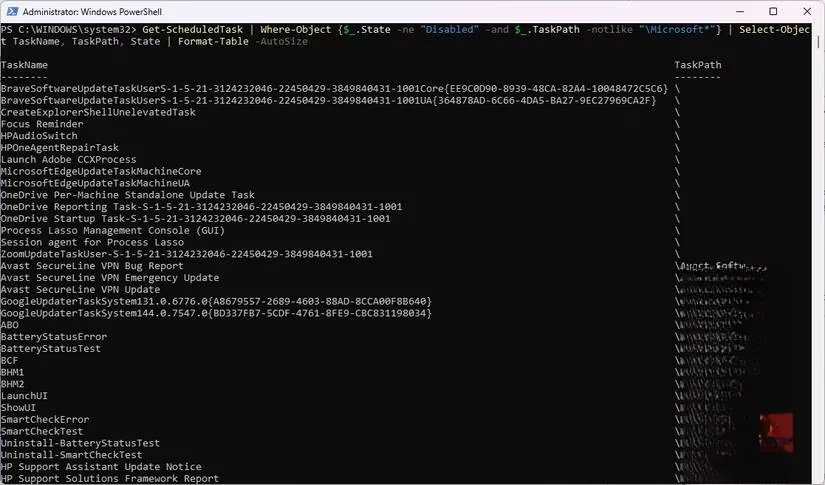
The Windows Task Scheduler is a powerful but often overlooked automation engine, a blind spot for most users due to its cumbersome interface. A security audit shines a light here, revealing tasks created by browsers, utilities, and game launchers that persist like stubborn echoes long after their parent software is closed.
Using PowerShell with administrative rights provides clarity:
# List active non-Microsoft scheduled tasks

Get-ScheduledTask | Where-Object {$_.State -ne "Disabled" -and $_.TaskPath -notlike "\Microsoft*"} | Select-Object TaskName, TaskPath, State
These tasks can trigger on events like logon, workstation unlock, or system idle, executing without active user approval. While not inherently malicious, they represent automated activity running outside user awareness. The audit empowers users to identify and remove tasks that have outlived their purpose, cleaning up this invisible automated workflow.
📡 Network Listeners: The Unseen Open Windows
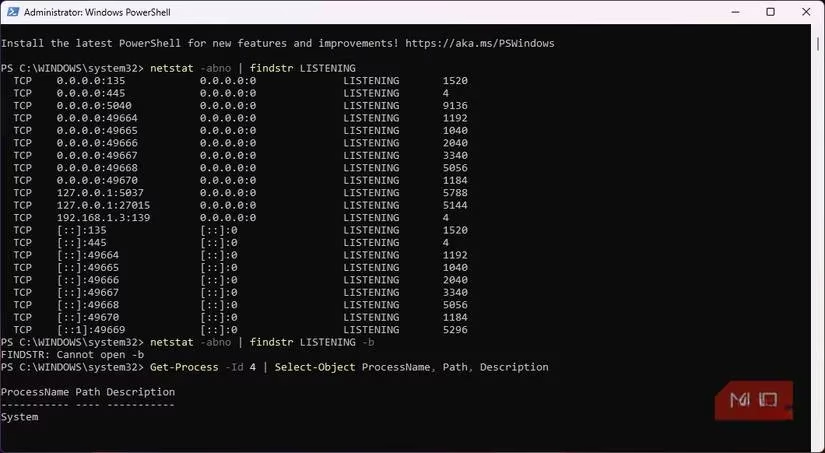
Many applications open network ports to listen for connections, expanding the system's attack surface. Using command-line tools helps map these active listeners to specific executables.
In an admin PowerShell window:
# Find applications listening for connections

netstat -abno | findstr LISTENING
Key interpretations:
-
127.0.0.1:PORT: Listening only locally (on the PC itself). -
0.0.0.0:PORT: Listening on all network interfaces (more exposed).
This audit often reveals surprises, such as media players or peripheral utilities hosting local web servers. While not externally exposed, these listeners are like secret intercoms within your digital house; other local software could interact with them in unexpected ways. Coupled with reviewing and pruning old Windows Defender Firewall rules for inbound exceptions from uninstalled games or tools, this step ensures legacy apps cannot silently bypass network defenses.
👑 Authority & Execution Policies: The Crown Jewels of Trust
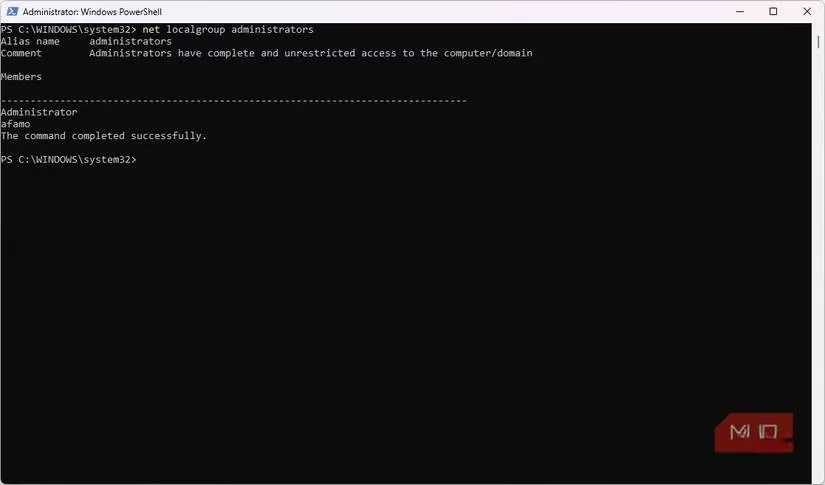
The final, critical audit vector is authority—who or what has permission to run with elevated privileges. Over time, installers bestow administrative rights, and Windows seldom revokes them automatically. This can lead to a sprawling, outdated kingdom of trusted software.
| Audit Area | Common Finding | Remediation Action |
|---|---|---|
| PowerShell Execution Policy | Set to overly permissive Bypass by a forgotten app. |
Reset to a stricter policy like RemoteSigned. |
| Administrative Group Members | Non-essential binaries or user accounts with admin rights. | Remove administrative flags from unnecessary entries. |
| Shell Extensions (via tools like ShellExView) | Context menu handlers for uninstalled cloud storage apps. | Disable or remove orphaned extensions. |
Discovering a Bypass execution policy set months prior by a third-party app was a stark reminder. These permissions are the system's crown jewels; real security is as much about managing what software is trusted to run with authority as it is about removing overtly dangerous files. It's the deliberate curation of this trust that forms the second, crucial half of the security story, which the green checkmark alone does not tell.
🧭 Conclusion: Reclaiming Control and Context
A full-system security audit is not a replacement for Windows Security but its essential complement. It provides the context and control that automated defenses lack. By deliberately mapping and managing the five key vectors—startup entries, background services, scheduled tasks, network listeners, and execution authorities—users transition from passive recipients of protection to active architects of their system's integrity. The process is akin to conducting a meticulous inventory of a vast, complex library, not just checking the locks on the front door. The ultimate reward is a streamlined, more secure system and regained trust in the very machine that manages so much of our digital lives. This informed management ensures that the silent, trusted operations within Windows align with the user's actual needs and security posture in 2026 and beyond. ✅
Leave a Comment