Is your Windows 11 machine still crawling to the desktop despite a freshly pruned startup list in Task Manager? You’re not alone. I’ve been there—staring at a spinning circle while wondering which hidden gremlin is stealing precious seconds from my morning workflow. Task Manager gives you that friendly, surface‑level peek at startup apps, but let’s be honest: it’s only scratching the surface. In 2026, with Windows getting smarter yet heavier, the real culprits often lurk in places Task Manager doesn’t dare show.
That’s where Autoruns enters the picture. This tiny, portable utility from Microsoft’s legendary Sysinternals suite has been around for years, but its power only grows with every Windows update. Quoting Microsoft’s own documentation, Autoruns “has the most comprehensive knowledge of auto‑starting locations of any startup monitor.” They aren’t exaggerating. If Task Manager reveals the tip of an iceberg, Autoruns drops you into the command center of an entire glacier.
But what exactly makes Autoruns so much more revealing? Why should you, a regular PC user in 2026, bother with a tool that sounds like it belongs in an IT admin’s toolkit? Let me walk you through my own journey from frustration to enlightenment.
Beyond the Startup Tab
Task Manager’s Startup tab is everyone’s first stop when a PC boots slowly. It lists user‑level programs that politely register themselves through standardized paths. You see your cloud sync apps, messaging clients, and perhaps a printer utility or two. Disable the worst offenders and you might shave a few seconds off your boot time. Job done, right?
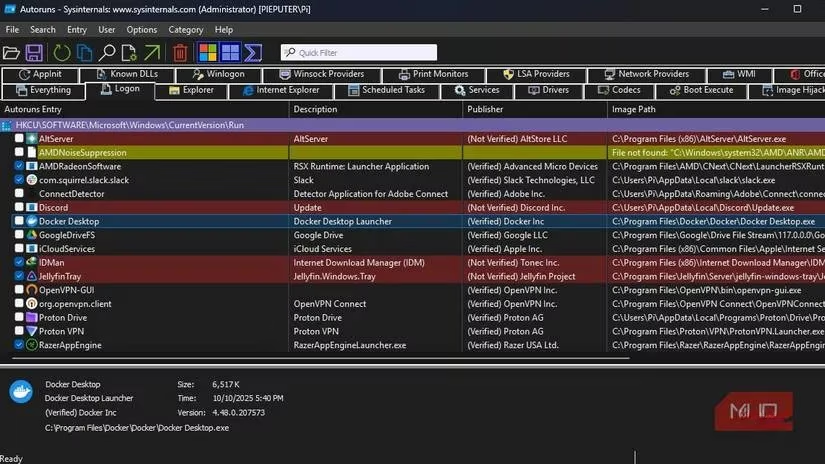
Here’s the catch: what about the services, scheduled tasks, shell extensions, browser plugins, and cryptic registry entries that launch without ever appearing in that friendly little list? Autoruns enumerates every autostart location Windows checks during boot and login. It inspects registry hives, system directories, scheduled tasks, services, drivers, Winsock providers, codecs, Explorer shell extensions, and even Office add‑ins. The first time I ran it, I felt like I’d lifted the bonnet of my car and suddenly understood all those mysterious hoses and cables.
The Everything Tab: Where You See It All
When you first fire up Autoruns—available as a simple download that requires no installation—your eyes will land on the Everything tab. This master view displays every single entry across all categories in one gigantic scrollable list. At first glance, it’s overwhelming. But there’s method to the madness.
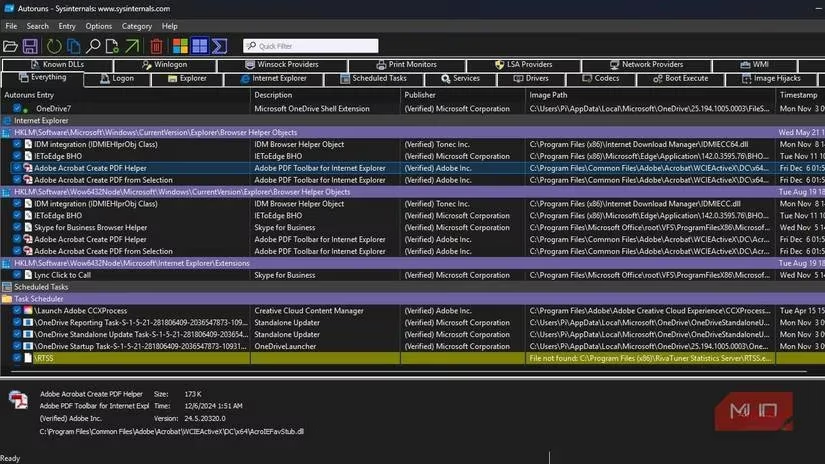
Any entry highlighted in yellow is missing its target file—a sign of a broken uninstall that still triggers at boot. Entries in pink or red lack a verified digital signature, which doesn’t automatically scream malware but certainly warrants a closer look. To cut through the noise, toggle the two filters at the top: Hide Windows entries and Hide Microsoft entries. The first removes critical system components you should rarely touch; the second hides items from additional Microsoft apps like OneDrive and Teams. Turn both on, and suddenly the chaos shrinks into something manageable. You can always bring Microsoft entries back when you want to examine them later.
The Logon Tab: Your New Best Friend
If you’re strictly aiming for a faster boot, the Logon tab is where you’ll spend most of your time. This is the closest match to Task Manager’s startup list, showing the user‑level programs that fire up when you sign in. But even here, Autoruns often surfaces entries that Task Manager hides—orphaned update schedulers, leftover trial‑ware remnants, or that utility you installed once and forgot about.
Right‑clicking any entry gives you an arsenal of options:
-
Jump to Entry takes you straight to the registry key responsible for the launch.
-
Jump to Image opens the actual executable’s folder so you can inspect it.
-
Search Online fires up a web query with the entry’s name—perfect when you stumble across something cryptic.
-
Check VirusTotal runs a multi‑engine malware scan without leaving the app. In 2026, with cyber threats morphing constantly, this integration is a gift.
I’ve made it a habit to run a VirusTotal scan on anything that looks unfamiliar. Only once did it flag a genuinely malicious startup item—a stealthy crypto miner that had slipped past my regular antivirus. Disabling it was as simple as unchecking a box.
Services, Scheduled Tasks, and Hidden Launch Points
Ever had an app that keeps re‑appearing in your system tray no matter how many times you tell it not to start? Look at the Scheduled Tasks tab. Many persistent updaters and background agents—Adobe’s Creative Cloud, Java’s update checker, or even some printer drivers—hide themselves in Task Scheduler rather than the Startup folder. Autoruns pulls them into the daylight, letting you disable them with a single click.
The Services tab is equally illuminating. Windows runs dozens of services, and third‑party applications often install their own. While stopping the wrong service can cause problems, Autoruns lets you temporarily disable a service (just uncheck it) to see if your boot speeds improve. If something breaks, simply re‑enable it. The Drivers, Boot Execute, and Winsock tabs are more specialized—they matter when you’re chasing networking glitches, broken driver installations, or stubborn background components that refuse to identify themselves. You might never need them, but their presence gives Autoruns its diagnostic superpower.
A Real‑World Example: Saving My Right‑Click Menu
Let me share a personal victory. For months, my right‑click context menu on a high‑end Windows 11 laptop felt sluggish. I’d right‑click a file and wait an embarrassing extra second. I tried decluttering the menu with a third‑party tool, but the delay persisted. Frustrated, I opened Autoruns and navigated to the Explorer category, which lists all shell extensions.
What I found was a graveyard of context menu handlers: Adobe PDF entries, Google Drive integration, OneDrive shortcuts, and a few remnants of software I’d uninstalled months ago. They were all still injecting themselves into every right‑click. I unchecked them all—no permanent deletion, just a test. After a quick reboot, my context menu snapped open instantly. That one discovery alone turned me into an Autoruns evangelist.
Should You Use Autoruns in 2026?
Microsoft keeps releasing user‑friendly utilities like PC Manager that promise to optimize your system with a single click. But these tools inevitably paint with a broad brush. Autoruns makes no such promise. It simply shows you everything that launches on your machine and leaves the decisions in your hands.
Is there a learning curve? A small one. But the trade‑off is genuine, granular control over what happens when you press the power button. If you’ve already cleaned up Task Manager’s startup list and your PC still takes too long to boot, Autoruns is the missing piece of the puzzle. It’s one of those rare Windows tools that actually respects your intelligence—and in 2026, that feels more valuable than ever.
So, the next time your boot time tests your patience, don’t just stare at Task Manager. Give Autoruns a try. Your future self, watching the desktop appear in half the time, will thank you.
Leave a Comment