Yo squad! As a hardcore Windows power user, I've discovered some mind-blowing registry tweaks that'll seriously upgrade your daily grind. Forget those basic settings menus - we're diving deep into the Windows Registry Editor to unlock next-level customization and performance boosts. 🚀 Just remember: Always back up your registry before tinkering!
🔄 Bring Back the Classic Right-Click Menu
Tired of that extra "Show more options" click in Windows 11? That modern context menu hides all my essential tools like 7-Zip and Git! Here's the pro gamer move to restore the classic menu instantly:
reg.exe add "HKCU\Software\Classes\CLSID\{86ca1aa0-34aa-4e8b-a509-50c905bae2a2}\InprocServer32" /f /ve
Execute this in Windows Terminal (Admin), reboot, and boom - productivity restored! Want to revert? Just run:
reg.exe delete "HKCU\Software\Classes\CLSID\{86ca1aa0-34aa-4e8b-a509-50c905bae2a2}" /f
🔓 Nuke the Annoying Lock Screen
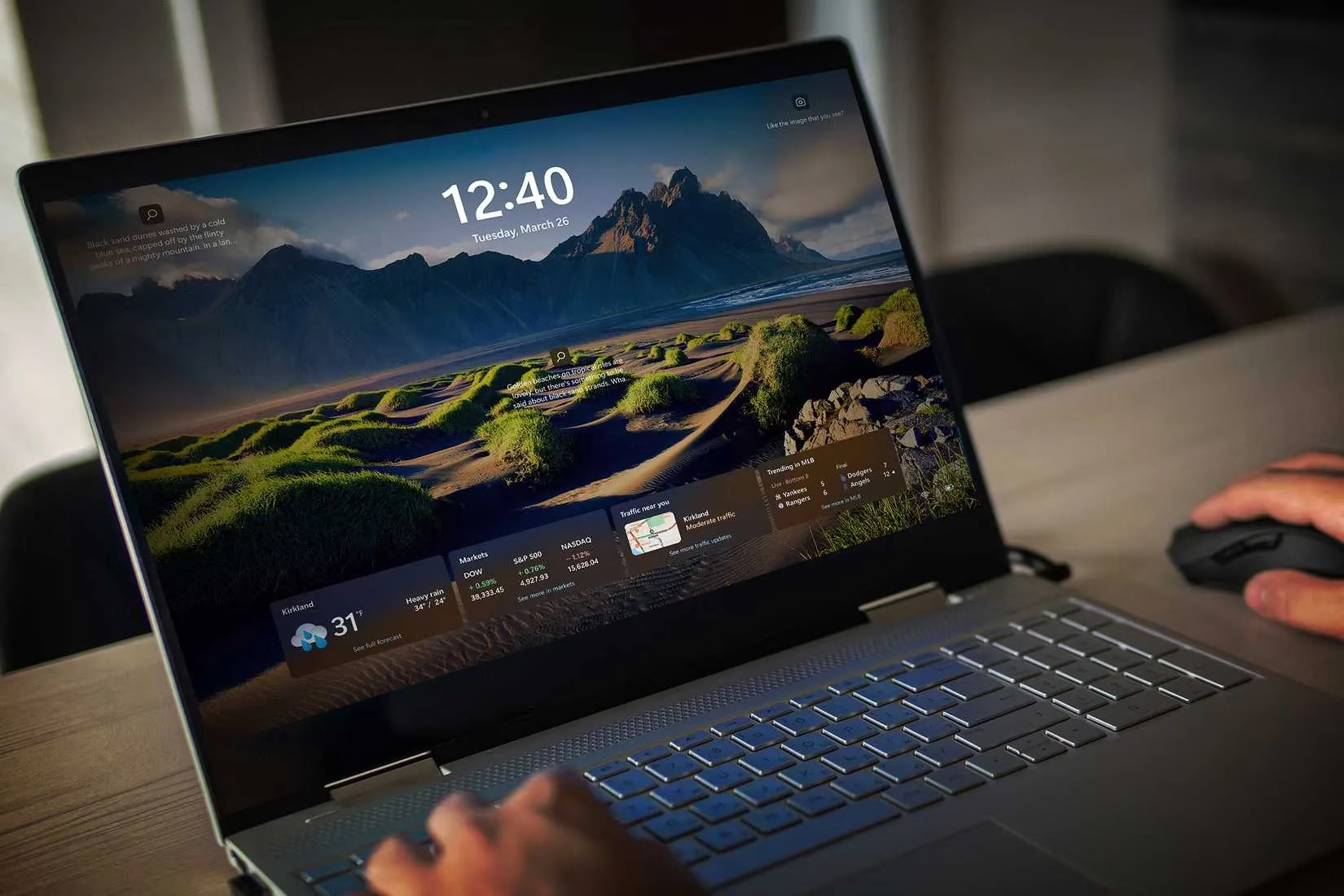
Those lock screen ads and "tips" drive me nuts! If you're already using login security (password/PIN), ditch this unnecessary step with this registry magic:
Windows Registry Editor Version 5.00

[HKEY_LOCAL_MACHINE\SOFTWARE\Policies\Microsoft\Windows\Personalization]

"NoLockScreen"=dword:00000001
Save as .reg file, run it, and enjoy direct login. Changed your mind? Restore with:
Windows Registry Editor Version 5.00

[HKEY_LOCAL_MACHINE\SOFTWARE\Policies\Microsoft\Windows\Personalization]

"NoLockScreen"=-
⏸️ Take Control of Windows Updates
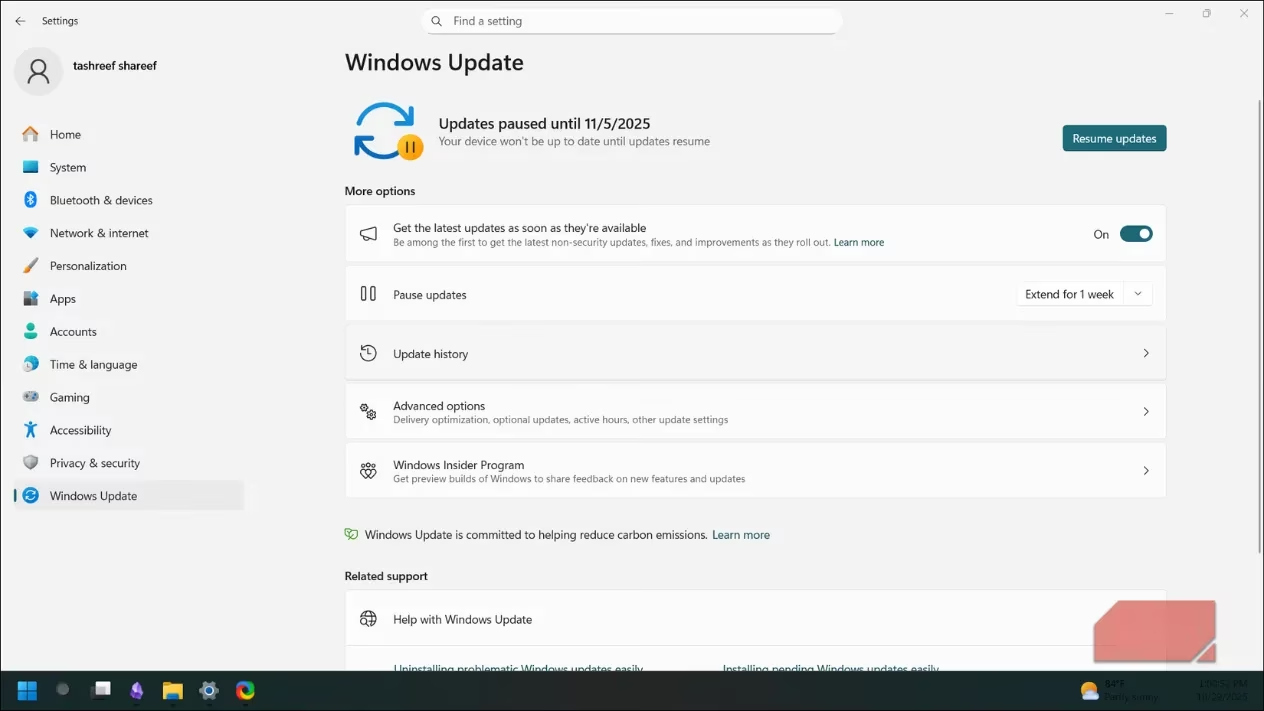
Auto-updates breaking your drivers? On metered connection? Freeze all updates with this nuclear option:
Windows Registry Editor Version 5.00

[HKEY_LOCAL_MACHINE\SOFTWARE\Policies\Microsoft\Windows\WindowsUpdate\AU]

"NoAutoUpdate"=dword:00000001
Re-enable anytime with:
Windows Registry Editor Version 5.00

[HKEY_LOCAL_MACHINE\SOFTWARE\Policies\Microsoft\Windows\WindowsUpdate\AU]

"NoAutoUpdate"=-
⚡ Turbocharge Your Shutdowns
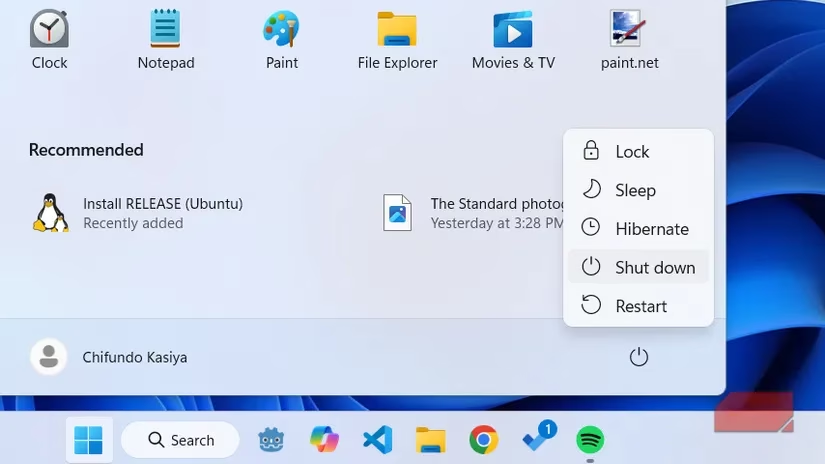
Sick of waiting for hung apps when shutting down? This script forces closure after 2 seconds (use with caution - may cause data loss!):
Windows Registry Editor Version 5.00

[HKEY_CURRENT_USER\Control Panel\Desktop]

"AutoEndTasks"="1"

"HungAppTimeout"="2000"

"WaitToKillAppTimeout"="2000"

[HKEY_LOCAL_MACHINE\SYSTEM\CurrentControlSet\Control]

"WaitToKillServiceTimeout"="2000"
Default settings restoration script:
Windows Registry Editor Version 5.00

[HKEY_CURRENT_USER\Control Panel\Desktop]

"AutoEndTasks"=-

"HungAppTimeout"="5000"

"WaitToKillAppTimeout"="20000"

[HKEY_LOCAL_MACHINE\SYSTEM\CurrentControlSet\Control]

"WaitToKillServiceTimeout"="5000"
📂 Pin Your D: Drive to Navigation
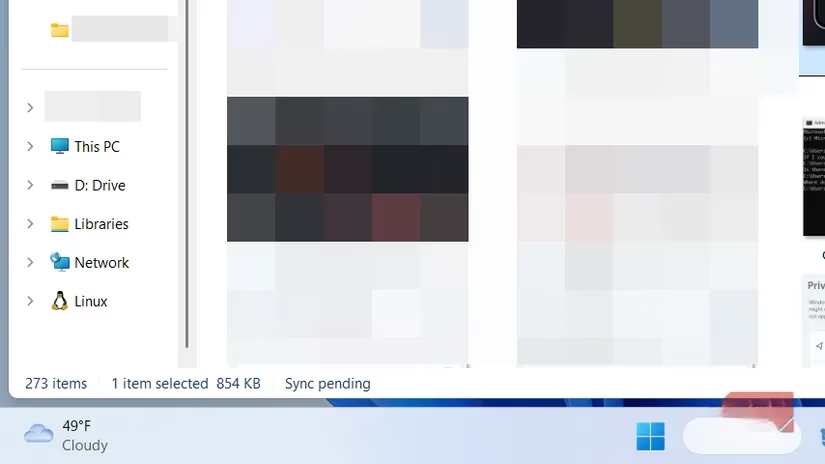
Game libraries on D: drive? Stop digging through folders! Add it directly to File Explorer's sidebar:
Windows Registry Editor Version 5.00

[HKEY_CURRENT_USER\Software\Classes\CLSID\{0525388b-89d9-4112-bf4d-2aaccb716a7f}]

@="D: Drive"

... (full code from reference)
Remove it later with:
Windows Registry Editor Version 5.00

[-HKEY_CURRENT_USER\Software\Classes\CLSID\{0525388b-89d9-4112-bf4d-2aaccb716a7f}]

... (full removal code)
👁️ Disable Visual Effects for FPS Boost
Got an older rig? Those fancy animations murder performance. Disable all visual fluff permanently (survives updates!):
Windows Registry Editor Version 5.00

[HKEY_CURRENT_USER\Software\Microsoft\Windows\CurrentVersion\Explorer\VisualEffects]

"VisualFXSetting"=dword:00000002
Revert to default with:
Windows Registry Editor Version 5.00

[HKEY_CURRENT_USER\Software\Microsoft\Windows\CurrentVersion\Explorer\VisualEffects]

"VisualFXSetting"=dword:00000000
🎮 Disable Power Throttling for Gaming
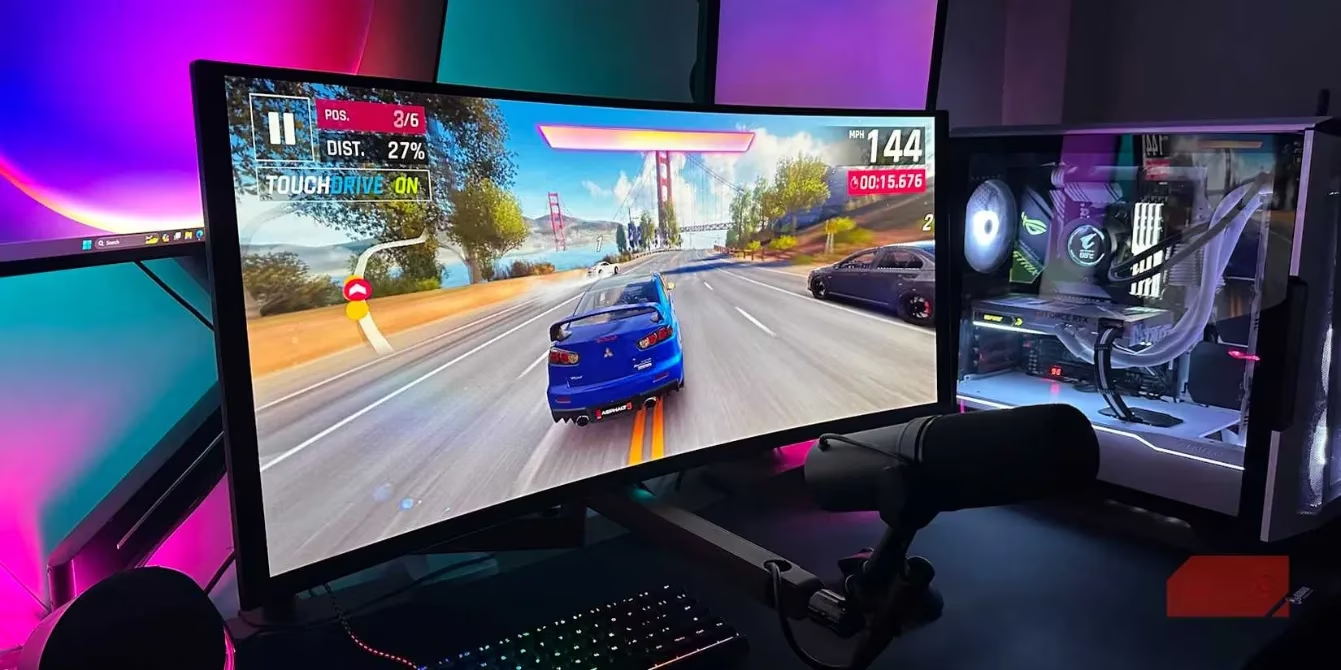
Stop Windows from choking your CPU during intense gaming sessions! Kill power throttling:
Windows Registry Editor Version 5.00

[HKEY_LOCAL_MACHINE\SYSTEM\CurrentControlSet\Control\Power\PowerThrottling]

"PowerThrottlingOff"=dword:00000001
Re-enable for better battery:
Windows Registry Editor Version 5.00

[HKEY_LOCAL_MACHINE\SYSTEM\CurrentControlSet\Control\Power\PowerThrottling]

"PowerThrottlingOff"=dword:00000000
🌐 Uncap Network Throttling
Experiencing lag spikes? Windows reserves bandwidth for background crap. Full unleash your connection:
Windows Registry Editor Version 5.00

[HKEY_LOCAL_MACHINE\SOFTWARE\Microsoft\Windows NT\CurrentVersion\Multimedia\SystemProfile]

"NetworkThrottlingIndex"=dword:ffffffff
Restore default:
Windows Registry Editor Version 5.00

[HKEY_LOCAL_MACHINE\SOFTWARE\Microsoft\Windows NT\CurrentVersion\Multimedia\SystemProfile]

"NetworkThrottlingIndex"=dword:0000000a
💎 Pro Tip: Always get registry scripts from trusted sources! A bad tweak can brick your system. But used wisely? These hacks will make you feel like a Windows wizard! ✨ Which tweak are you trying first? Drop your experiences in the comments!
Leave a Comment